
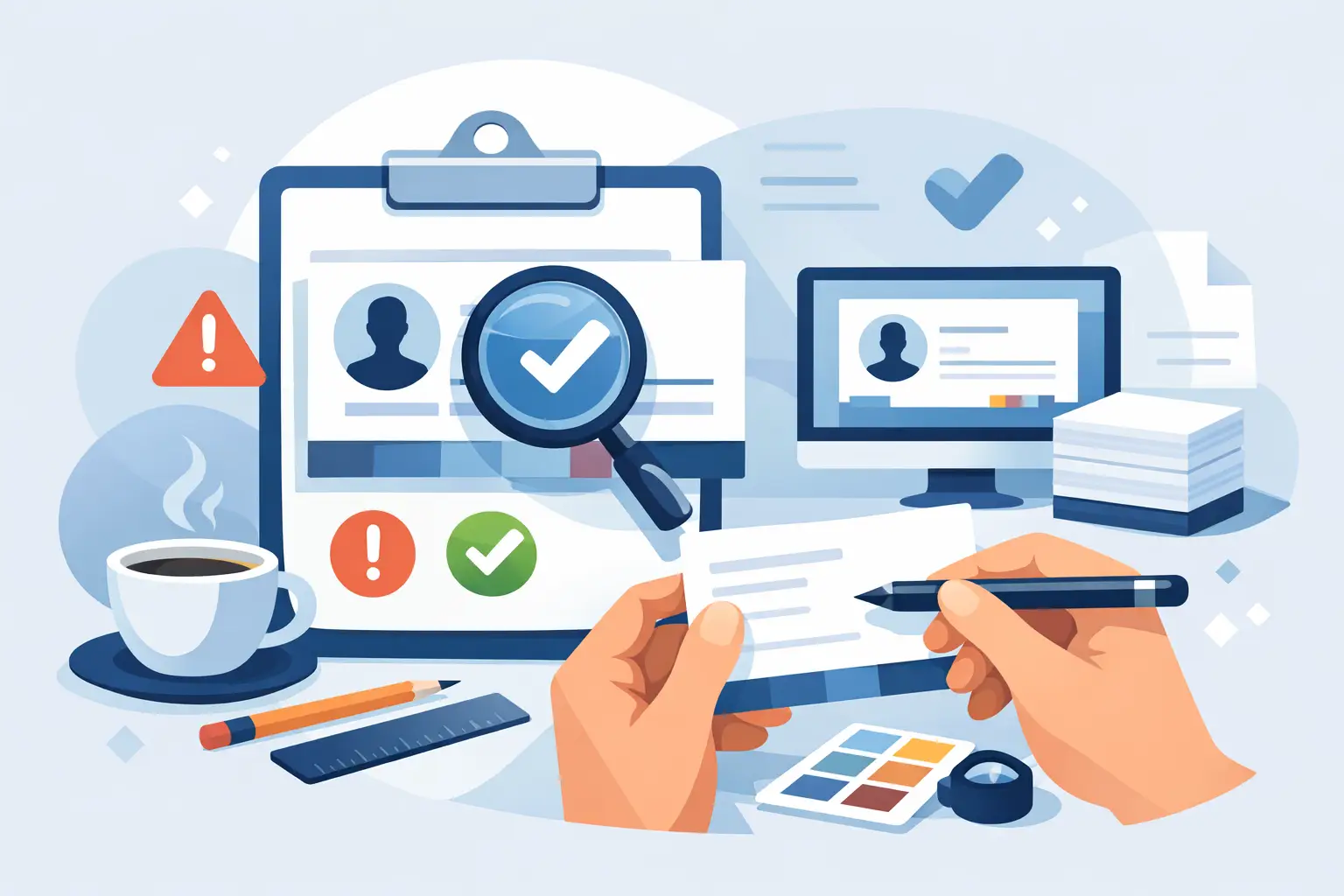
A business card is small, but it carries a big job. It has to make your business look credible, give people the right way to contact you, and still read clearly after it has been cut, handled, and tucked into a wallet. Taking time to proof a business card before printing prevents expensive reprints and protects the first impression you have worked to build.
A good proof is more than a quick look at spelling. It is a controlled final check of the information, layout, production settings, and physical usability of the card. That process matters whether you are launching a new service business, refreshing a property brand, or ordering cards for a growing hospitality team.
What a Business Card Proof Should Confirm
Proofing answers one practical question: will this card work exactly as intended once it is printed?
The screen version can look perfect while the printed version reveals problems. A phone number may be one digit wrong. A QR code may be too small to scan. White type may disappear into a light background. A logo placed too close to the edge may be trimmed during production. None of these issues are design details once cards are in circulation. They are customer-facing problems.
A professional proof checks four areas together: content accuracy, visual clarity, print setup, and brand consistency. Reviewing only the artwork while assuming the printer settings are correct leaves room for avoidable mistakes.
How to Proof a Business Card Before Printing
Start by reviewing the card as a customer, not as the person who supplied the information. Put the proof down for a few minutes, then return and ask: if I received this card at a meeting, could I immediately tell who this is, what they do, and how to reach them?
Read every word out loud, including small text. This slows your eye down enough to catch duplicated letters, missing digits, punctuation inconsistencies, and outdated job titles. Check names, phone numbers, email addresses, website addresses, social handles, and physical locations against the original source. Do not proof contact details from memory.
If multiple people need cards, use one approved information sheet for every staff member. That keeps job titles, extensions, email formatting, and company details consistent across the set. It also gives one person clear responsibility for the final sign-off.
Check the essentials in this order
Use this final review sequence before approving the artwork for print:
- Contact details: Confirm spelling, phone numbers, email addresses, website addresses, and QR code destinations. Test QR codes with more than one phone if possible.
- Brand elements: Check that the current logo, colors, fonts, tagline, and imagery match your approved brand files. A card should look like it belongs with your website, signage, flyers, and social profiles.
- Readability: Make sure type is large enough to read comfortably, especially phone numbers and email addresses. Fine script fonts and low-contrast text can look polished on screen but fail in print.
- Layout and hierarchy: Your name, business name, key service, and primary contact method should be easy to find. If everything is the same size or weight, nothing leads the eye.
- Print setup: Confirm finished size, bleed, safe margins, color mode, image resolution, and the correct front and back orientation.
This order is deliberate. There is little value in debating a subtle color adjustment if the main phone number is wrong or the card is set up at the incorrect size.
Review Size, Bleed, and Safe Areas
Most business cards are printed with a small tolerance for trimming. The final cut may shift slightly from one card to another, so artwork needs room around the edge.
Bleed is the extra background or image area that extends beyond the finished card size. It prevents thin white lines from appearing at the edges after trimming. A common setup uses 0.125 inches of bleed on every side, but always follow the printer’s specification.
Safe margins work in the opposite direction. Keep important content, including logos, text, icons, and borders, safely inside the trim line. A border placed close to the edge can look uneven after cutting, even if the printer has done the job correctly. In most cases, a borderless background is safer than a tight decorative frame.
Ask for a proof that shows the trim line, bleed line, and safe area. Those guides may not appear on the final printed card, but they make it much easier to see whether essential elements are in the right place.
Check Color for Print, Not Just Your Screen
Screens create color with light, while commercial printers use ink or toner. That is why bright colors, deep blacks, and subtle gradients can shift when they move from a digital proof to stock in your hand.
For standard commercial printing, files should usually be prepared in CMYK rather than RGB. RGB artwork can be converted by the printer, but the result may not match what you approved on screen. If brand color accuracy is critical, especially for a logo used across multiple materials, request a printed proof or discuss a spot-color option with the printer.
Paper choice also changes the result. Uncoated stock can make colors feel softer and more natural. Gloss finishes can make images and color blocks appear sharper, but may create glare. Matte stock often feels premium and is easier to write on. The right choice depends on the role of the card and the personality of your brand, not simply which finish sounds more expensive.
Make Sure the File Is Actually Print-Ready
A PDF is not automatically a print-ready PDF. Before sending files, confirm that images are high resolution, ideally 300 dpi at their final printed size. Images copied from a website, screenshot from a phone, or pulled from social media are often too low resolution for a sharp result.
Fonts should be embedded or converted to outlines when required by the printer. This avoids font substitutions that can alter spacing, line breaks, or the overall appearance of the design. Any linked images should be included in the final package if you are providing native design files.
Your final deliverables should clearly identify what is ready to print. At minimum, keep an approved print PDF for the front and back of the card, along with a digital version for email signatures or online sharing if needed. Retain the editable source files and brand assets too, so future staff cards or updates do not require the design to be rebuilt from scratch.
At Brandcrafter, that clarity is part of the 3P Method: personal collaboration to confirm the details, practical production files that remove printer guesswork, and professional consistency across every brand touchpoint.
Do a Real-World Readability Test
Do not approve a business card at 200 percent zoom. View it at actual size on screen, then print it on a standard office printer as a rough physical test. The colors and stock will not be exact, but the test quickly exposes crowded spacing, undersized type, and awkward information flow.
Hold the sample at arm’s length. Can you identify the company and person in a second or two? Read the smallest line under normal room lighting. Check both sides. If the back contains a service list, map, offer, or QR code, make sure it supports the card’s purpose rather than competing with the contact information.
This is also the time to think about use. A realtor may benefit from a clear mobile number and a scannable property profile. A café owner may prioritize location, hours, and a loyalty prompt. A trades business may need its service area and emergency contact details. The card does not need to say everything. It needs to make the next action easy.
Avoid the Most Common Approval Mistakes
The most common mistake is approving too quickly because the design looks polished. Attractive design can create false confidence, particularly when the person reviewing it already knows the correct information and unconsciously reads what they expect to see.
Another problem is last-minute editing. Adding one more service, credential, phone number, or social icon can turn a clear card into a cramped one. If a detail is not necessary for the next customer action, consider placing it on your website or flyer instead.
Finally, never assume the front and back will align perfectly without checking the printer’s template and production method. Double-sided cards can have slight registration movement. Keep designs tolerant of that reality, particularly when using narrow lines, small shapes, or artwork that crosses an edge.
Give Final Approval With Confidence
Final approval should be specific. Confirm that the content is correct, the layout is approved, the print specifications match the printer’s requirements, and any QR codes or digital details have been tested. Save the approved proof with a date and version name so there is no confusion if the card is reordered later.
A business card should feel simple to hand over because the work behind it was careful. Give the proof a focused final review, and every card can leave your hand looking as professional as the business it represents.