
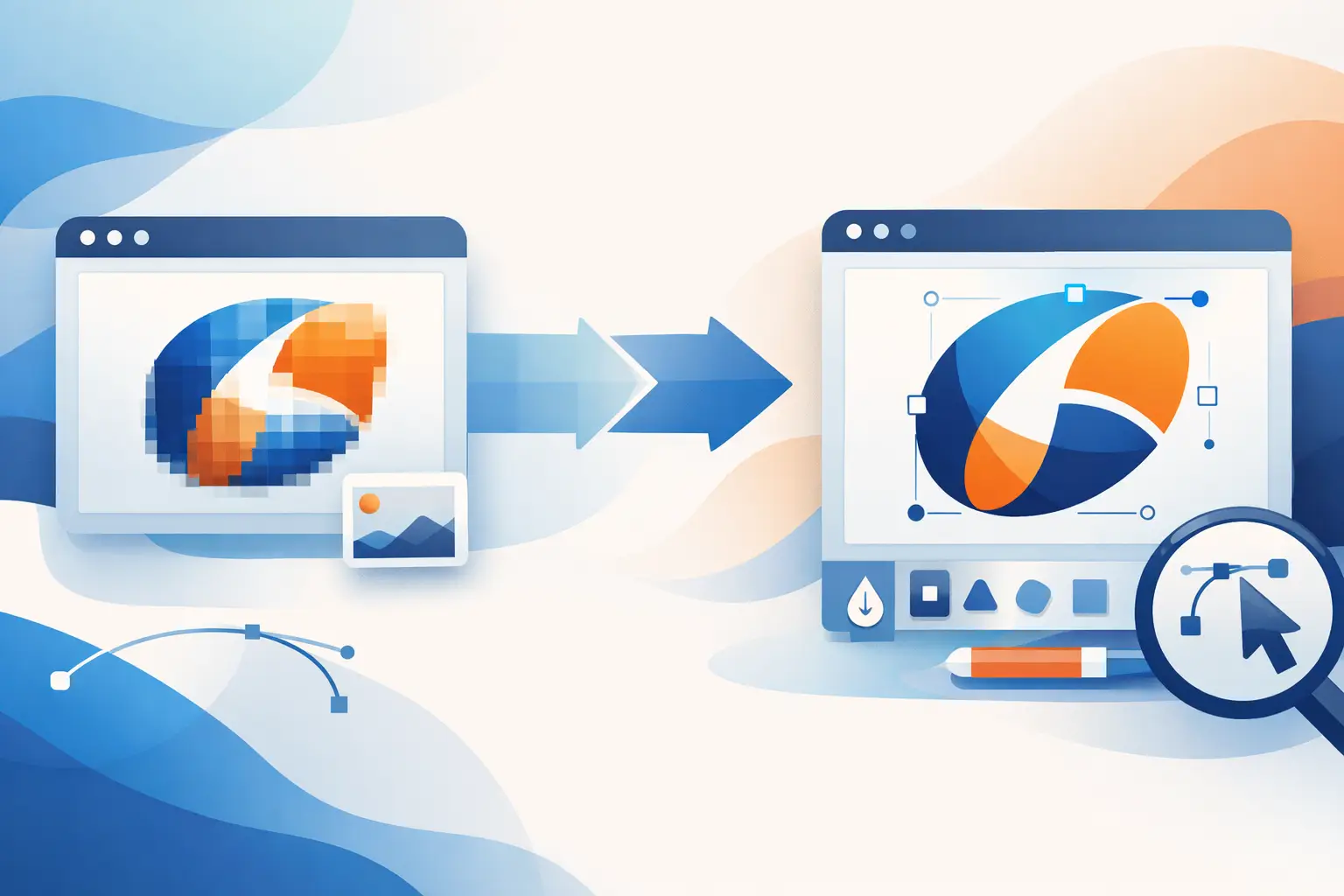
A logo that looks fine in an email signature can fall apart fast when you try to print it on a sign, uniform, vehicle wrap, or brochure. That is usually the moment business owners realize they do not actually have a proper logo file. They have a JPG.
If you need to convert jpg logo to vector file format, the goal is not just changing the file extension. The goal is getting artwork that stays sharp at any size, prints cleanly, and holds together across real business use. That part matters more than the conversion itself.
What a vector file actually does
A JPG is made of pixels. It has a fixed resolution, so when you enlarge it, edges get soft and details start to break apart. That is why a logo pulled from a website or social profile often looks rough in print.
A vector file works differently. It is built from paths and points rather than pixels, which means it can scale up or down without losing quality. This is the format sign shops, printers, embroiderers, and professional designers usually need.
Common vector formats include AI, EPS, PDF, and SVG. Not every vendor asks for the same one, but they all serve the same purpose – clean, scalable artwork.
Can you really convert jpg logo to vector file cleanly?
Yes, but the honest answer is it depends on the logo.
If the JPG is simple, high resolution, and built from basic shapes with clean contrast, conversion can be fairly straightforward. If the file is tiny, blurry, compressed, or includes gradients, shadows, texture, or fine type, results can vary a lot.
This is where many businesses lose time. They assume any tracing tool will produce a professional vector. Sometimes it will produce something usable. Just as often, it creates a file that is technically vector but still messy – uneven curves, distorted letterforms, too many anchor points, and colors that do not match the original brand.
So yes, you can convert jpg logo to vector file format. The better question is whether you need a quick trace or a proper rebuild.
The two main ways to convert a JPG logo
Auto-tracing
Auto-tracing uses software to detect the shapes in a raster image and turn them into vector paths. This is faster and works best for simple logos with solid colors and minimal detail.
Programs like Adobe Illustrator can do this reasonably well when the source file is clean. You import the JPG, use an image trace feature, adjust settings, expand the result, and then clean up the paths.
The trade-off is accuracy. Auto-tracing often creates more points than necessary and can misread curves, corners, and small text. For internal use or a quick mockup, that may be enough. For production files, it often still needs manual work.
Manual redraw
Manual redraw means recreating the logo as vector artwork from scratch, using the JPG as a reference. This takes longer, but it gives a far cleaner result.
For logos with typography, custom shapes, or poor source quality, redraw is usually the right call. It gives you smoother curves, balanced spacing, and a file that performs properly across print and digital use.
This is also the better path if your logo has inconsistencies that have built up over time. A redraw can fix those instead of preserving them.
When a quick conversion is enough
There are cases where speed matters more than perfection. If you need a simple one-color logo enlarged for a flyer, invoice, or basic promotional item, a clean auto-trace may be enough.
It can also work if your logo is geometric, has no tiny details, and the original JPG is large and crisp. In those situations, the cleanup is lighter and the output can be production-friendly.
Still, it is worth checking the file before you send it anywhere. A vector that looks okay on screen is not automatically ready for print.
When you need a proper rebuild instead
If your logo will appear on signage, apparel, packaging, vehicle graphics, or any high-visibility brand material, shortcuts usually show. The same applies if your JPG is pulled from an old website, social media image, scanned business card, or screenshot.
You should also lean toward redraw if the logo includes thin lines, script fonts, gradients, or overlapping elements. These details are where automatic conversion tends to fall short.
A practical rule is this: if the logo represents your business in front of customers, the file should be built properly, not just converted quickly.
How to convert jpg logo to vector file step by step
If you want to handle the process yourself, keep it structured.
1. Start with the best JPG you have
Use the largest and cleanest version available. A low-quality source limits every step after that. If you have multiple versions, choose the one with the sharpest edges and least compression.
2. Import it into vector software
Adobe Illustrator is the most common choice, though other vector programs can also work. Place the JPG on an artboard and lock it if you plan to redraw manually.
3. Test image trace if the logo is simple
Run an image trace and adjust the settings based on the logo style. For solid logos, fewer colors and tighter path settings usually help. Ignore the temptation to accept the first result. Zoom in and inspect corners, curves, and letter shapes.
4. Expand the artwork and clean the paths
Once traced, convert the result into editable paths. Then remove extra anchor points, smooth rough edges, and correct any distorted areas. This is where much of the real work happens.
5. Rebuild text where possible
If the typeface is known or can be matched, replacing traced text with live vector type usually gives a far better result. If it is custom lettering, manual redraw is often necessary.
6. Match the brand colors
Do not rely on whatever colors the tracing tool guessed. Set proper color values for print and digital use. If you do not have brand standards yet, this is a good time to establish them.
7. Save the final file in the right formats
At minimum, keep an editable master file and export the common formats your vendors may request, such as AI, EPS, PDF, and SVG. You may also want PNG versions for day-to-day digital use.
What a professional deliverable should include
A usable vector logo is more than one file in one format. If you are paying for conversion, ask for a practical file package you can actually use.
That usually includes an editable vector master, print-ready PDF, EPS for vendors that require it, SVG for web use, and PNG exports with transparent backgrounds. It should also include color and black versions, plus reversed artwork if the logo needs to sit on dark backgrounds.
This is where a process-led design partner can save you repeat costs. The conversion itself matters, but the real value is having a clean, organized logo file set that supports future flyers, business cards, signage, and digital marketing without starting over each time.
Common mistakes that cause problems later
The biggest mistake is thinking a PNG is the same as a vector because it has a transparent background. It is not. Transparency helps with placement, but it does not make the file scalable.
Another common issue is accepting a traced logo with poor typography. People often focus on the icon and miss the fact that the business name looks uneven or distorted. Customers may not know why it looks off, but they notice.
There is also the file-format trap. Some businesses receive one vector file and assume they are covered. Then a print vendor asks for EPS, a website developer wants SVG, and an office staff member needs a transparent PNG. A solid handoff avoids that scramble.
Should you do it yourself or hire a designer?
If the logo is simple and your use is limited, DIY can be fine. It is a reasonable option when budget matters and the source image is strong.
If the logo is central to your brand, appears across multiple customer touchpoints, or needs to meet printer and vendor requirements, professional conversion is usually the better investment. It reduces rework, avoids production issues, and gives you files that are built for real business use rather than one immediate task.
That is the practical standard we work to at Brandcrafter – not just delivering a converted file, but delivering a logo asset set that works across the materials businesses actually need.
A JPG might be enough to get by for a week. A clean vector file is what helps your brand stay consistent for years.